DashboardOwnersAdmins
Use report templates, the custom builder, and save, share, or export results
Start from a quick view or dataset, refine a report, save it privately or for the team, and export complete results.
Available to owners and admins when advanced reporting is included and enabled.
Use Reports to move from a ready-made view to a reusable, shareable, or exported answer.
Available to
Owners and admins with advanced reporting access can use Reports. Other roles may see summary cards on Overview without access to the full builder.
Before you start
- Decide the question, date range, and group of records you need before adding filters.
- The reporting period on Overview changes the quick-view counts, but it is not copied into every report you open. Check the builder's own date filter before using its results.
- Treat a warning that the preview is incomplete as a stop sign for totals and exports.
- Shared views can be opened by teammates with report access; private views are for you.
Steps
- Select Dashboard → Reports.
- On Overview, choose a reporting period and review the cards under Quick views, or select Blank report. Use Show all templates when you need more choices. After opening a card, confirm its date filter in the builder; a blank report has no date range until you add one.
- Alternatively, choose a dataset tab: Lessons, Students, Billing, or Leads. Under Billing, choose Invoices or Payments.
- Under Columns, choose the information that should appear in the result.
- Open Filters & sorting. Add a rule by choosing Field, Condition, and the value. Use Add rule for another requirement, OR branch for alternatives, and Add sort to control order.
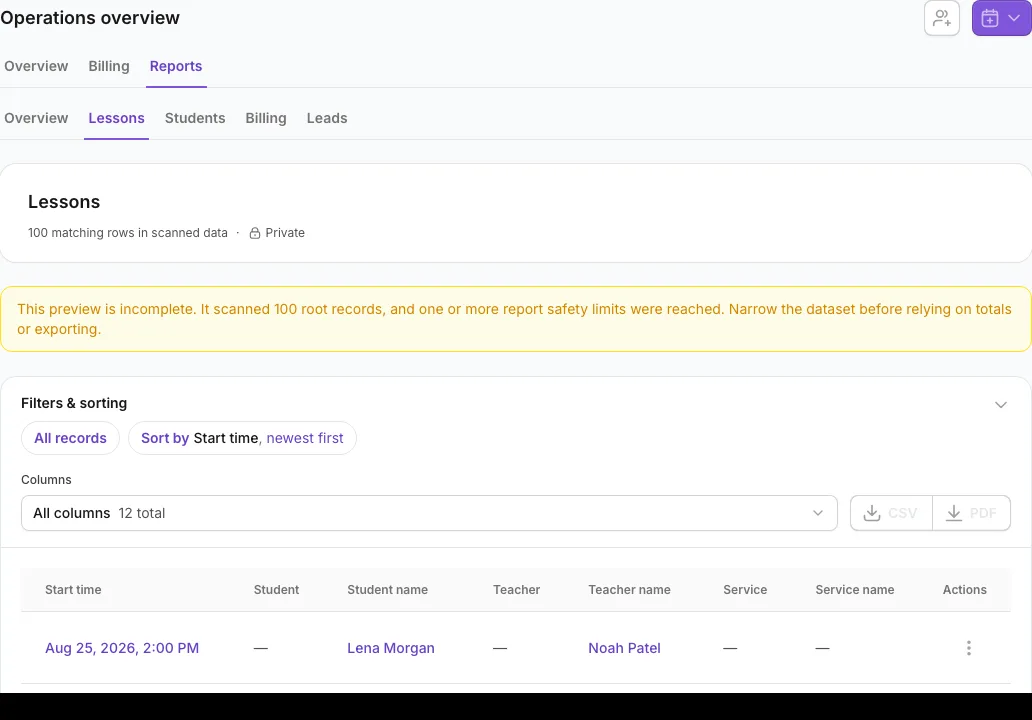
- Review the live preview and row count. If the preview says it is incomplete or a safety limit was reached, narrow the date range or filters before relying on it.
- Edit Report title, then select Save report. For an existing view, use Save changes; for a read-only shared view, use Save as copy.
- Open More report actions and select Share with team to make a private view shared, or Make private to limit it again. The same menu also offers Duplicate, Reset to defaults, and, when allowed, Delete view.
- Select CSV for spreadsheet-ready data or PDF for a printable view. Exports are unavailable when there are no rows or the preview is incomplete.
- Return to Overview to reopen the report under Saved views.
What happens next
Saved views keep the selected dataset, columns, filters, sorting, title, and visibility. Shared views appear for teammates with report access. CSV downloads the rows; PDF opens a printable export and may require pop-ups to be allowed.
If you do not see this option
- Reports is limited to owners and admins and can also be plan-dependent.
- A filter field can be unavailable when its list of choices is too large; existing saved filters remain visible.
- Save changes is unavailable when nothing changed or when you do not own the shared view.
- Delete view is shown only when you can edit that saved view.
- CSV and PDF are disabled for empty or incomplete results.
- If PDF does not open, allow pop-ups for the dashboard and try again.
Last reviewed July 25, 2026
Related articles
PreviousAdd discounts, record refunds, or void an invoice safelyNextUse day, week, month, and split views and filters
Was this article helpful?
Your feedback helps us improve the Help Center.