Understand roles, plan access, and demo limits
Understand why dashboard options differ by person, plan, school setting, and demo environment.
All dashboard users; only owners and admins can make many school-wide access and enablement decisions.
Use the access model to understand what you can see, what you can change, and which actions are intentionally blocked.
Available to
This explanation applies to everyone. Owners and admins generally have the broadest internal access; staff and front-desk access is more focused; teachers and client-facing users see narrower workspaces.
Before you start
- Separate four questions: your role, your individual permissions, the school's plan, and the school's enabled settings.
- Treat the public demo as a safe preview, not as proof that a live payment or message can be sent.
- The school-wide Client communications and Client billing controls start off and stay off until an owner or admin deliberately enables each one.
- Never share an owner or admin login to work around a missing option.
Steps
- Check the main menu. Owners and admins can usually see school-wide workspaces. Staff and front-desk users see the operational areas granted to them. Teachers normally see Dashboard, Calendar, and Settings. Client-facing accounts normally see Dashboard, Calendar, Assignments, and Settings.
- Open Dashboard and check its tabs. Overview is available to internal users. Billing requires billing access. Reports is limited to owners and admins with reporting access.
- If a whole workspace is missing, ask an owner or admin to check both your role and the school's plan. Features such as messaging, pipelines, staff management, website tools, advanced reports, client billing, and Assistant can be plan-dependent.
- If a button inside a workspace is missing, ask whether your individual permission includes that action. Seeing a record does not always mean you can edit, archive, charge, invite, or send from it.
- Before sending client messages, confirm that the school's client-communication setting is enabled and that the client is eligible for that channel. A connected provider alone does not authorize communication.
- Before collecting client payments, confirm that the school's client-billing setting is enabled and that payment setup is ready. A connected payment account alone does not authorize billing imported clients.
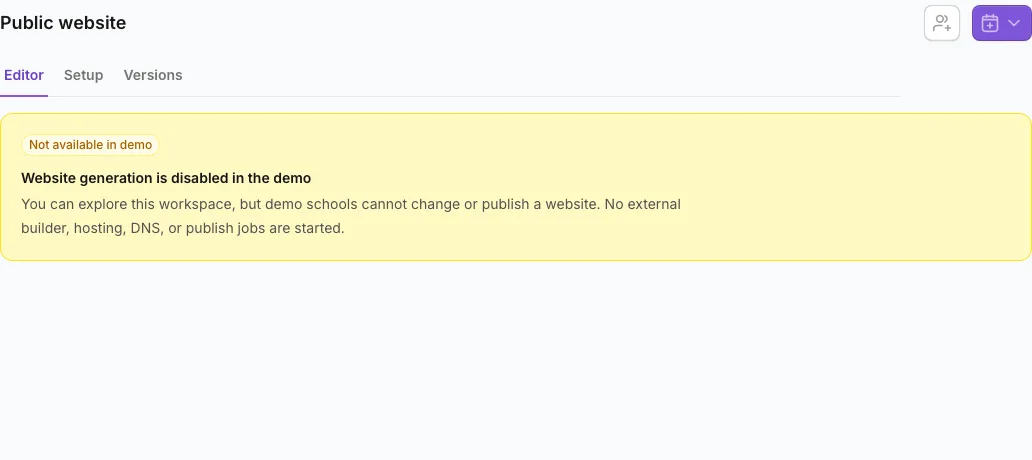
- In the public demo, messages are simulated. Imports, provider setup, live payments, payment links, stored-card charges, website publishing, and signup-link actions are unavailable.
- If you need an unavailable capability, ask an owner or admin to change the correct role, permission, plan, or school setting. Refresh after the change.
What happens next
When access or enablement changes, the dashboard recalculates the menu, tabs, and actions for that person. Existing records stay in place; only the allowed ways to view or act on them change.
If you do not see this option
- Confirm that you are in the intended school and not a public demo school.
- Ask an owner or admin for the specific capability you need; avoid requesting a broader role than necessary.
- If the role is correct, check whether the plan includes the feature.
- If the feature is visible but sending, charging, publishing, or inviting is blocked, check the related school setting and provider readiness.
- If access was just updated, reload the dashboard and sign in again if needed.
Last reviewed July 25, 2026
Related articles
Was this article helpful?
Your feedback helps us improve the Help Center.