Manage your school profile, headquarters, and public presence
Keep the school name, bio, branding, support details, and primary address accurate across the dashboard and public pages.
Available under School settings for owners, admins, and staff with Settings access.
Maintain one accurate school identity that the dashboard can reuse for staff, families, public pages, and operational setup.
Available to
Owners, admins, and staff who can open Settings → School → Profile can review this information. Some changes may be restricted by assigned access.
Before you start
Collect the school’s official name, optional legal name, public support contact details, headquarters address, and primary phone. Use only a logo and brand details the school is authorized to display publicly.
Steps
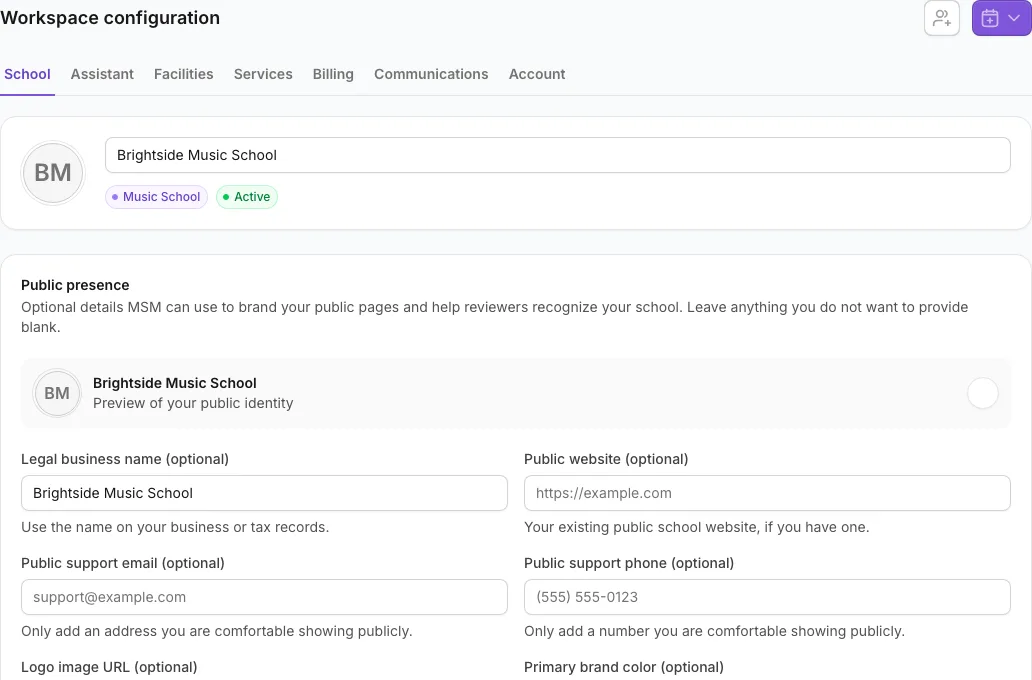
- Open Settings → School → Profile.
- Review the School name at the top and update it if needed. Leave the field to save the change.
- Under Public presence, enter any useful optional details: Legal business name, Public website, Public support email, and Public support phone.
- Upload the School logo if desired, choose the primary brand color, and review the preview. The logo must be no larger than 5 MB.
- Select Save public presence.
- Under About, write a short school bio in plain language and save it by leaving the field.
- Under Headquarters, use Search address or Enter manually to set the street, city, region, postal code, and country.
- Enter the Primary phone and select Save headquarters.
What happens next
The updated identity becomes available wherever the dashboard uses school branding, regional information, support details, or the headquarters location. Existing website previews do not automatically become live and may need a new preview update to reflect changes.
If you do not see this option
Front-desk and limited roles may not have School settings. Ask an owner or admin to update the school profile or review your Settings access.
Last reviewed July 25, 2026
Related articles
Was this article helpful?
Your feedback helps us improve the Help Center.