Work leads in Board and List
Use Board view for stage-by-stage work and List view for a compact table of leads in one pipeline.
Available when your position includes access to Pipelines.
Switch between Board and List to match the kind of lead work you are doing without changing the underlying records.
Available to
Owners, admins, and team members whose position includes Pipelines access can work the leads they are allowed to see.
Before you start
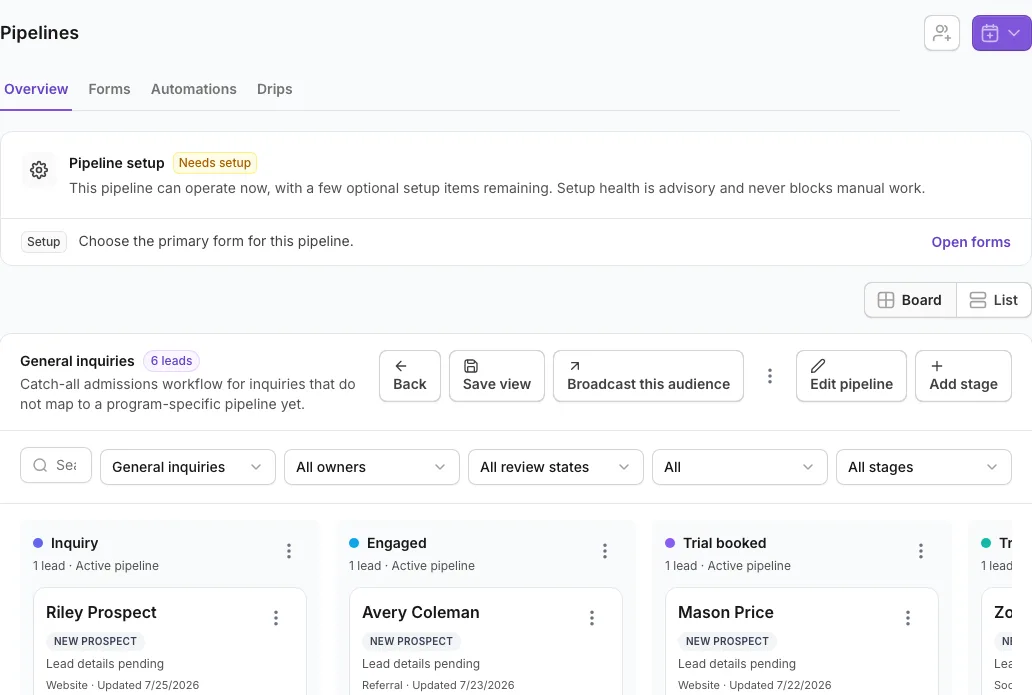
Open a specific pipeline and stay on Overview. Board view and List view show the same pipeline from different angles; switching views does not move or edit a lead.
Steps
Use Board view
- Open Pipelines, then select a pipeline.
- On Overview, select Board view.
- Read the columns from left to right to understand the stages in this journey.
- Open a lead card to review contact details, relationships, history, and the next action.
- Move a lead to the appropriate stage as their journey progresses.
- Use Won only after a qualifying enrollment or booking. Use Lost when the opportunity will not continue.
Use List view
- Select List view on the same Overview.
- Scan the table when you need to compare more leads at once.
- Search, sort, or filter to narrow the table.
- Open a row to see the complete lead record.
- Select rows when you need to apply the same supported update to several leads.
What happens next
A stage change appears anywhere that lead is shown, including the other Overview view and All leads. Related automations may react to the change if they are active and their conditions match.
If you do not see this option
The Board/List switch appears inside an individual pipeline, not on the Pipelines hub. If you cannot open the pipeline, ask an owner or admin to check your workspace access or whether the pipeline is archived.
Last reviewed July 25, 2026
Related articles
Was this article helpful?
Your feedback helps us improve the Help Center.